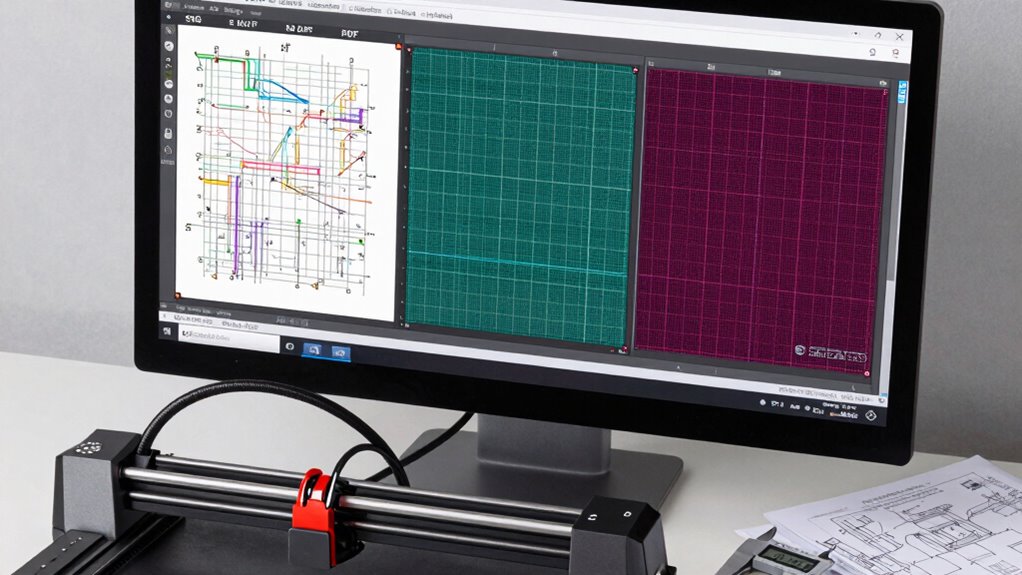

To keep laser cuts accurate, choose the right format and set your export options carefully. For SVGs, preserve layer and vector integrity, and guarantee scalability. With DXF files, set a 1:1 scale, simplify paths, and use consistent line weights. For PDFs, embed fonts, use vector content, and confirm page sizes. Correct export settings prevent errors and improve cut quality. Stick around to learn more about fine-tuning your files for perfect laser results.
Key Takeaways
- Use vector-based export formats like SVG and DXF to preserve design detail and ensure clean laser cuts.
- Set consistent line weights and colors in SVG and DXF files to match laser cutter settings for accurate processing.
- Verify scale and dimensions before exporting, and double-check files in viewers to prevent size discrepancies.
- Optimize paths by simplifying and merging lines in DXF files to improve cut accuracy and efficiency.
- Export PDFs with vector content, embedded fonts, and appropriate resolution to maintain image clarity and position accuracy.

Mountain Bundle 150+ Design | Dxf Eps SVG Png Pdf Printable File Format | Instant Digital Download | Home Decor Camping Abstract Hill Frame Apparel Print Wall Art Vector 0040
- File Formats Included: Dxf, Eps, Svg, Png, Pdf, Zip
- Compatible With: CNC, Water Jet, Laser, Plasma, Canva, Photoshop
- Download Method: Instant download via provided link
As an affiliate, we earn on qualifying purchases.
As an affiliate, we earn on qualifying purchases.
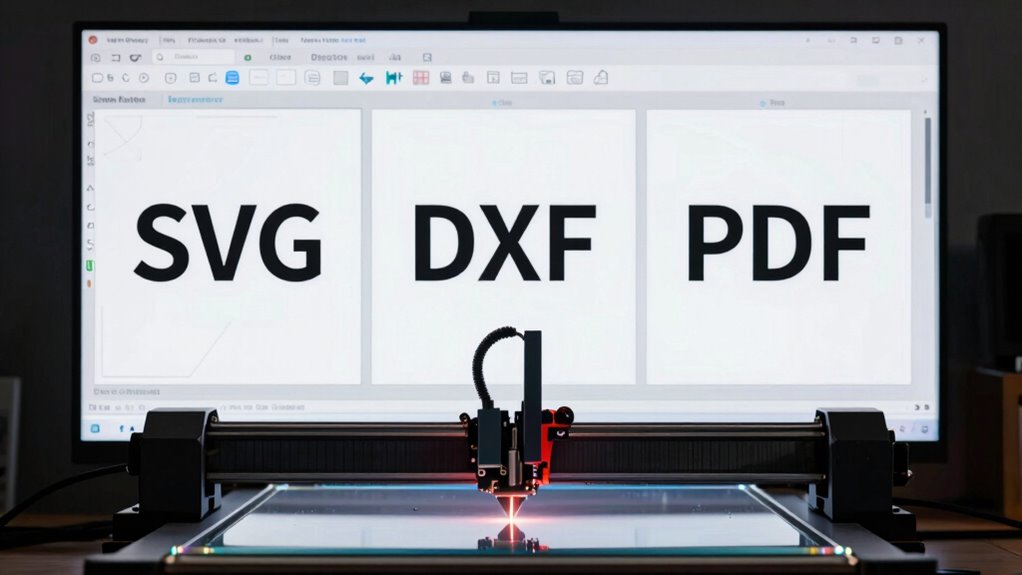
SVG, DXF, and PDF: Which File Format Is Best for Laser Cutting?
SVG, DXF, and PDF: Which File Format Is Best for Laser Cutting?
Choosing the right file format for laser cutting depends on your specific project needs, as each format offers different advantages. For example, SVG files excel in material compatibility, especially with materials like wood, acrylic, and fabric, because they support vector graphics that guarantee precise cuts. DXF files are highly compatible with many CAD programs, making them ideal if you require detailed designs and seamless software integration. PDF formats are versatile and widely supported, useful for sharing designs across different platforms, but may need conversion for effective laser cutting. Understanding the material you’re working with and guaranteeing your software can handle the chosen format is vital. Additionally, selecting a standardized file format ensures better consistency and compatibility across different laser cutting machines and software, streamlining your workflow and achieving accurate, clean laser cuts. Moreover, considering file format standards can help prevent issues related to file corruption or incompatibility during the design and cutting process. Ensuring your files meet industry standards can also facilitate smoother operation and reduce errors during manufacturing. Incorporating proper file validation can further enhance the reliability of your designs and reduce troubleshooting time. Furthermore, choosing a format aligned with software capabilities ensures smoother design transfers and reduces the need for multiple conversions, saving time and effort.
How to Export SVG Files for Accurate Laser Engraving and Cutting
To guarantee accurate laser engraving and cutting with SVG files, you need to export your designs correctly from your software. Start by organizing your files into clear folders to avoid confusion. Use descriptive file naming conventions, including version numbers if needed, to keep track of edits. When exporting, verify you select “SVG” as the format and check options like scalable vector graphics and preserve layer integrity. Proper folder organization and consistent file naming prevent mistakes during laser operation. Additionally, understanding vector graphics ensures your designs maintain quality at any scale. Here’s a quick reference:
| Folder Organization | File Naming |
|---|---|
| Save SVGs in dedicated folders | Use descriptive, concise names |
| Group related files | Include date/version info |
| Keep backups | Avoid special characters |
This approach minimizes errors, streamlines your workflow, and ensures precision in your laser projects. Incorporating file organization strategies can further enhance your process and reduce the risk of errors.
Best Settings to Export DXF Files for Clean Laser Cuts
To achieve clean laser cuts with your DXF files, you need to focus on precise line weights and correct file scaling. Ensuring your paths are simplified helps prevent unexpected cuts or errors. Pay attention to these settings to optimize your results and save time during the process.
Precise Line Weights
Ensuring precise line weights in your DXF files is essential for clean laser cuts. To achieve this, set your line weights clearly within your design software, avoiding unnecessary variation that could affect cut quality. When exporting, disable file compression to prevent data loss that might thin or thicken lines unexpectedly. Proper color management also plays a role—use consistent colors for cut lines and engravings, ensuring the laser software interprets them correctly. Keep line weights uniform for all cut paths, and double-check that your export settings preserve these details. Additionally, understanding line weight is crucial for maintaining accuracy in laser cutting projects. By controlling line weights through careful export procedures, you minimize the risk of inconsistent cuts, ensuring your final product matches your design intent with precision. Recognizing the importance of file format compatibility helps prevent issues during the laser cutting process and ensures your designs are interpreted correctly.
Proper File Scaling
Accurate file scaling is essential for achieving precise laser cuts when exporting DXF files. Proper file scaling guarantees your design maintains its intended dimensions, preserving vector accuracy throughout the process. To optimize your DXF exports, consider these key settings:
- Set the scale to 1:1 for true size accuracy
- Verify your design dimensions before export
- Use consistent units (inches or millimeters) across your design software
- Avoid unnecessary transformations that could distort scaling
- Double-check your exported file in a viewer before laser cutting
- Understanding vector accuracy helps ensure your design remains true to its original dimensions during export and cutting. Additionally, paying attention to export settings minimizes errors that could compromise your project’s precision. Ensuring your software’s unit consistency aligns with your laser cutter’s requirements is also crucial for maintaining scale integrity. Proper file preparation further reduces the risk of misalignment or inaccuracies during the cutting process.
Simplify Complex Paths
When exporting DXF files for laser cutting, simplifying complex paths is essential to achieving clean cuts and efficient processing. Complex path simplification reduces unnecessary nodes and curves, making the vector data easier for your laser cutter to interpret. This process improves accurate vector conversion, ensuring your design maintains its integrity without jagged edges or misalignments. Use your design software’s path simplification tools to reduce the number of points while preserving key details. Focus on balancing detail with simplicity, avoiding overly complex paths that can slow down cutting or cause inaccuracies. By simplifying paths before export, you streamline your workflow, minimize errors, and ensure your laser cuts are precise and smooth. Additionally, optimized export settings can further enhance cut quality and reduce processing time. Incorporating vector optimization techniques can help maintain design fidelity while simplifying paths, leading to more professional results. Paying attention to design complexity and how it impacts the laser process is also crucial for achieving optimal results.
How to Export PDF Files for Precise Laser Projects
To export PDF files suitable for precise laser projects, you need to pay close attention to your settings in your design software. Confirming proper export helps maintain material compatibility and laser safety. Focus on these key points:
- Use vector-based content to keep edges sharp and clear.
- Set the resolution to at least 300 DPI for accuracy.
- Embed fonts or convert text to outlines to prevent issues.
- Choose a compatible color mode, typically RGB, for consistent results.
- Double-check the page size matches your material dimensions.
These steps help prevent misalignments and ensure your laser cutter interprets the design correctly. Proper export settings also minimize material waste and enhance safety by avoiding unexpected cuts or sparks. Precise PDF exports are essential for achieving professional, safe, and accurate laser projects.
Key Export Settings That Impact Your Laser Cutting Results
Your export settings can make or break your laser cutting results. Adjusting path optimization, line and fill precision, and ensuring format compatibility are key to achieving clean, accurate cuts. Understanding these options helps you get the best performance from your chosen format.
Path Optimization Settings
Path optimization settings play a essential role in determining the efficiency and quality of your laser cutting process. Properly optimized paths reduce cutting time, improve accuracy, and minimize material waste. Focus on vector optimization to simplify complex shapes, ensuring smoother cuts and reduced processing load. Using file compression helps streamline large files, preventing lag or crashes during operation. Consider these key settings:
- Minimize unnecessary node points for cleaner vectors
- Enable path merging to prevent overlapping cuts
- Adjust curve smoothing for precision
- Optimize path order to reduce travel time
- Use file compression to decrease file size without losing detail
Additionally, paying attention to electric dirt bike performance can inspire better understanding of how precise control and efficiency impact overall results.
Line and Fill Precision
Achieving precise laser cuts depends heavily on setting the correct line and fill accuracy during export. Properly adjusting color fill and stroke weight ensures your design translates accurately to the laser cutter. If the stroke weight is too thin, it may not cut properly; too thick, and it could cause excess material removal. Similarly, optimizing color fill ensures the laser understands which areas to cut or engrave. Use this table to guide your settings:
| Setting | Recommended Adjustment |
|---|---|
| Color fill | Use solid, consistent colors |
| Stroke weight | Match to laser’s minimal cut line |
| Fill accuracy | Maximize detail without bloating |
| Line precision | Keep lines crisp and clear |
| Fill transparency | Avoid transparent fills |
Fine-tuning these parameters guarantees cleaner, more precise results. For best results, always consider software compatibility and how your chosen export settings interact with your specific laser cutter model.
Export Format Compatibility
Choosing the right export format is essential for guaranteeing your laser cutter interprets your design correctly. Compatibility issues can lead to misaligned cuts or material damage. Consider how your material reacts with different formats, and whether your machine’s calibration supports specific file types. For ideal results, check if the format maintains design accuracy and supports your laser cutter’s software. Being aware of piercing care and hygiene can also influence the choice of materials and design details to prevent contamination or damage. Key points to ensure compatibility include: – Confirming format support for your material type – Ensuring design scales correctly across formats – Verifying file integrity after export – Matching format precision with machine calibration – Testing small cuts before full projects; additionally, understanding file compatibility can help prevent issues during the cutting process.
Troubleshooting Common Export Problems That Cause Inaccurate Cuts
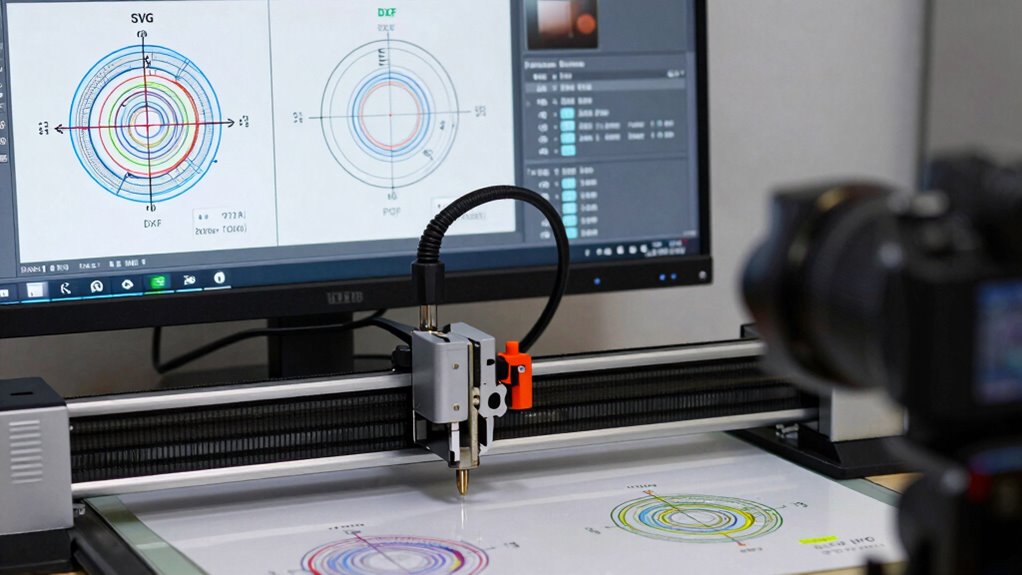
Export issues are a common cause of inaccurate cuts, often stemming from how the design is prepared and saved in different file formats. Material compatibility plays a crucial role; using incompatible materials can lead to unexpected results, so make certain your file settings match your material type. Software integration problems can also cause inaccuracies, especially if your design software doesn’t translate files correctly into your laser cutter’s software. Check that your export settings preserve vector data and proper scale, avoiding unnecessary rasterization or simplification. Always test with small samples before the final cut. Confirm that your laser software recognizes the file format properly and interprets the design accurately. Troubleshooting these areas helps make certain your exported files translate seamlessly into precise, clean cuts.
Tips for Managing and Saving Files for Consistent Laser Results
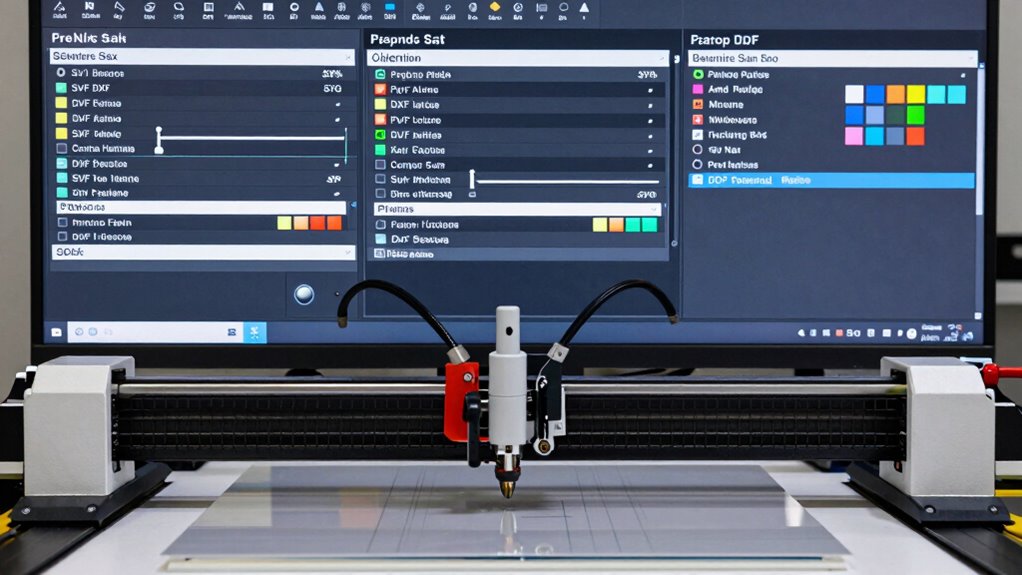
To guarantee consistent laser results, managing and saving your files correctly is essential. Proper organization ensures your designs remain accurate and ready for production. Focus on file security to prevent unauthorized changes or corruption, especially when sharing with others. Implement version control to track modifications, so you always work with the latest file version. Keep backups of your original files to avoid data loss. Use clear naming conventions to easily identify different iterations. Regularly update your storage system to maintain workflow efficiency. Additionally, consider password-protecting sensitive files and maintaining a detailed change log. These practices help you maintain control, reduce errors, and ensure your laser projects stay precise and consistent every time. Understanding filtration and system maintenance can also help prevent unexpected issues that might affect your project quality.
Avoid These Export Mistakes That Can Ruin Your Laser Projects
Even a small mistake during the export process can compromise the quality and accuracy of your laser projects. One common error is ignoring material compatibility, leading you to select settings that don’t match your material’s thickness or composition, which can cause uneven cuts or burns. Additionally, skipping safety precautions, like verifying the correct file format or ignoring the laser’s power settings, risks damaging your material or damaging the machine. Be sure to double-check your export options, ensuring you choose the right format—SVG, DXF, or PDF—and set the appropriate resolution. Properly understanding material compatibility and following safety precautions during export helps prevent mistakes that could ruin your project or pose safety hazards, saving you time and ensuring precise, clean cuts.
Final Tips: Choosing and Setting Up Files for Perfect Laser Cuts
Choosing and setting up your files correctly is the key to achieving perfect laser cuts. Ensuring material compatibility helps prevent surprises and guarantees your design translates well onto your chosen material. Proper software integration streamlines the process, reducing errors and saving time. Before exporting, verify that your file’s scale matches your project specs. Use clean, simple vector lines to avoid unnecessary complexity. Double-check that your design layers are correctly organized for cutting or engraving. When preparing files, consider the laser’s power and the material’s thickness to adjust line thickness and fill settings. Remember, consistent setup across your software and machine minimizes mistakes, resulting in cleaner, more precise cuts. Proper preparation is your best tool for flawless results.
Frequently Asked Questions
How Do I Choose the Right Export Settings for Different Laser Machines?
To choose the right export settings, first consider your material compatibility and the specific laser machine you’re using. Adjust power settings based on material thickness and type, ensuring clean cuts without burning or charring. Use compatible formats like SVG or DXF for precise vector cuts, and always test with scrap pieces. These steps help optimize your settings for accurate, professional results across different laser machines.
Can I Convert Between SVG, DXF, and PDF Without Losing Quality?
Yes, you can convert between SVG, DXF, and PDF without losing quality if you maintain vector fidelity. Use conversion tools that support high-quality vector data and avoid unnecessary compression, which can introduce artifacts. Be mindful of export settings, ensuring they preserve the original vector lines. Properly handled, the conversion process keeps your designs sharp and accurate for laser cutting, minimizing issues caused by compression artifacts or data loss.
What Are Common Software Tools for Preparing These File Formats?
You can prepare SVG, DXF, and PDF files using software like Adobe Illustrator, CorelDRAW, or Inkscape for vector editing. For raster conversion, tools like Adobe Photoshop or GIMP help convert images while maintaining quality. These programs allow you to optimize export settings, ensuring your files stay accurate for laser cutting. Choose software based on whether you need precise vector editing or raster image adjustments to achieve the best results.
How Do Layer Management and Color Settings Affect Laser Cutting Accuracy?
They say a chain is only as strong as its weakest link, so managing layers and colors is essential. You should organize your layer hierarchy clearly, assigning different colors to indicate cut, engrave, or score lines. Proper color coding ensures your laser cutter interprets instructions correctly, maintaining cutting accuracy. When layers are well-managed, your design becomes a seamless blueprint, reducing errors and delivering precise results every time.
Are There Industry Standards for Optimal Export Parameters Across Formats?
You should follow standardization guidelines and industry benchmarks to guarantee ideal export parameters across formats. These standards help you maintain consistency, accuracy, and quality in laser cutting. While specific settings may vary by material and machine, adhering to established industry benchmarks for line weight, resolution, and color coding can substantially improve results. Always consult your equipment manufacturer’s recommendations and professional community standards for the best practices.
Conclusion
Choosing the right file format and export settings is key to achieving precise laser cuts. Don’t worry if your first attempts aren’t perfect—adjusting settings like line thickness or resolution can make a big difference. With a bit of practice, you’ll master exporting files that cut cleanly every time. Remember, patience and attention to detail are your best tools for consistently professional results. Keep experimenting, and you’ll soon create flawless laser projects with ease.